
How to Edit Text in an Image (Without Photoshop in 2026)
Editing text in an image used to feel like a job reserved for heavy software Photoshop for one, and maybe a handful of other tools. Today, things are different. With new AI‑powered apps and smarter online tools, changing, removing, or adjusting text in visuals doesn’t have to be a complex process. One of the early experiences many people point to is using Visora ai to manipulate design elements seeing an AI help reframe what was once a manual task. It doesn’t replace skill, but it makes the barrier so much lower.

For years designers relied on pixel‑level editing. Now, even without traditional software, you can achieve results that look clean and purposeful, as long as you understand the tools and limitations.
Table of Contents
How to Edit Text in an Image without Photoshop: the modern approach
When people ask How to Edit Text in an Image, they’re usually looking for methods that don’t involve bulky desktop software especially in 2026 when cloud tools and AI assistants have matured. Today, changing text in pictures online or on mobile isn’t only possible, it’s becoming common. You don’t need to master layers or masks to make a label say something else.
It’s worth noting that the results depend on how the text is embedded in that image to begin with. If the text is part of a simple graphic or flat design, it’s easier to replace or edit. If it’s baked into complex photos with lighting and shadows, tools still do a good job, but they may require more finesse.
Why non‑Photoshop methods matter now
As design workflows have changed, many creators want something faster and often more intuitive. Designers still love desktop tools, but even they use web editors for quick fixes. One trend you’ll notice, especially in AI‑centric tools, is how templates make heavy editing easier. For example, exploring features of visora ai templates shows how layout, text, and graphics can be reconfigured without deep editing skills.
These tools aren’t about replacing Photoshop so much as giving people alternatives when full software is overkill for the task at hand.
Different situations you might want to edit text in images
People look up this process for many reasons:
- Updating outdated information in a graphic
- Correcting typos on banners or flyers
- Localizing text (changing language)
- Rebranding assets with new wording
- Adding captions or call‑outs in marketing visuals
Understanding your goal helps you choose the right tool and workflow.
Tools that let you edit text in an image (no install)
Thanks to AI and cloud computing, there are a growing number of options that let you open an image and edit text directly in the browser. Some use optical character recognition (OCR), others blend machine intelligence with graphics editing features. You’ll see terms like “image text editor,” “photo text editing,” and “online image editor” used interchangeably. Here’s a rough table of common tool categories:
| Tool Category | What it Does | Typical Use |
| Simple Online Editors | Add/remove text overlays | Quick captions, basic edits |
| AI Text Replacer Tools | Replace text embedded in graphics | Change signs, labels |
| OCR + Editor | Converts text to editable layers | Accurate text extraction |
| Graphics Editor | Combines drawing + text tools | Creative design work |
| Mobile Photo Text Apps | Edit text on phone | On‑the‑go edits |
Knowing your category helps you avoid frustration. Not every tool does every job well.
Top online methods to edit text in an image
There’s a big difference between adding text and changing text that’s already part of the image. Many free editors let you overlay text, but that isn’t always true text editing.
Editing existing text in a photo means recognizing the original letters, matching the background, and placing new text so it doesn’t look out of place. This is where OCR, AI retouching, and background fills come in.
Some tools let you simply click on the area of text and type in a new phrase—the tool blends and reconstructs the background for you.

Step‑by‑step guide: Edit text in an image using online tools
Here’s a general flow most modern online tools follow:
1. Upload the image
Start with a high‑quality image, ideally not overcompressed. The cleaner it is, the better results you’ll get.
2. Let the tool detect text
Most advanced editors scan the picture for text regions using OCR or AI segmentation. It identifies where the letters are.
3. Select the text area you want to edit
Once detected, you click or tap the text box you want to change.
4. Type your new text
This is where the magic happens. Instead of overlaying text, many tools try to replace the old text, matching color, font style, and lighting.
5. Adjust styling if needed
Some editors let you choose font style, size, shadow, and alignment—especially if they only added a text layer over the image.
6. Download or share
Save your image when you’re satisfied.
Every platform might call steps slightly different things, but the logic stays similar.
What to do when text is part of a complex photo
Editing text in images with heavy background detail (like a sign on a textured wall) can be trickier. These tools still work, but they rely on background reconstruction after removing the old text.
Sometimes the tool replaces text with an approximation of the background. Other times you might see slight blurring or automated fill that doesn’t match perfectly. That’s where manual fine‑tuning helps.
It’s similar to how an image to video generator predicts depth and motion it makes intelligent guesses based on patterns it has seen.
Comparing text overlay vs real text edit
People often confuse text overlay on image with true text editing. A text overlay is what you see when you add captions or bubbles on top of an existing picture. It sits above the image and doesn’t touch the original content.
Real photo text editing removes or replaces text that was part of the image itself. That’s a deeper layer of editing.
Here’s a quick comparison:
| Feature | Text Overlay | Real Text Edit |
| Adds new text | ✔ | ✔ |
| Replaces existing text | ✘ | ✔ |
| Preserves original look | ✔ | Depends |
| Background fill needed | ✘ | ✔ |
If all you need is a label or caption, text overlay might be enough. If you need to change what was already written, real text editing is necessary.
Best tools to edit text without Photoshop
There’s no universal best, but some tools stand out for accessibility and results:
- Browser‑based editors with AI text replacement
- OCR‑powered image text editors
- Simple online collage or photo text editing platforms
- Mobile apps with text editing features
Some tools focus more on creative layouts than real editing, so choose based on your goal.
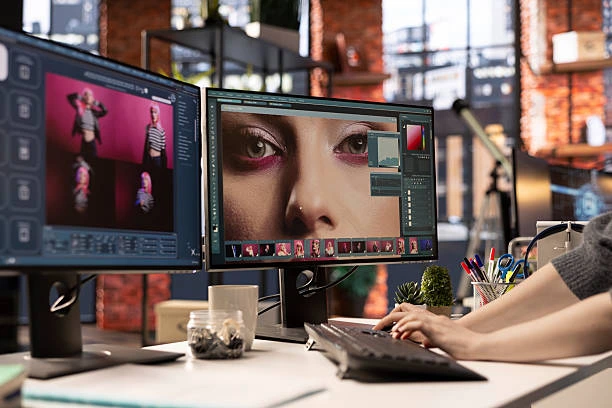
How to replace text in an image without losing quality
A common concern people have is that editing will blur or distort the picture. If you stretch text too much or use low‑quality output, that can happen.
A few guidelines help:
- Start with the highest resolution image you have
- Avoid extreme resizing after editing
- Choose higher quality export options
- Let AI or smart fills reconstruct the background instead of simple paint tools
Advanced online image editors will give you options for quality settings.
H3: Editing picture text on mobile devices in 2026
Mobile editing has come a long way. Phones now have enough processing power to run AI text editors locally, and apps can sync with cloud tools for heavy lifting.
Whether you’re on a small‑screen editor or using tablet tools, the process feels similar to desktop web editors: select, replace, adjust.
Some apps export directly to social formats, which saves time.
Mistakes people make when editing text in images
There are a few common pitfalls:
- Using basic overlay when real edit is needed
- Choosing low contrast fonts that blend badly
- Ignoring background texture when replacing text
- Exporting at too low quality
These mistakes don’t ruin the work, but they make the result look less professional.
Learning the difference between simple captioning and actual text edit pays off.
Advanced tips for cleaner results
A few patterns help results look smoother:
Match lighting and shadow
If the original text had a shadow or gradient, match it.
Check background fill
Some AI editors let you refine how they reconstruct the area behind the old text.
Manual touch‑ups
Sometimes you need to erase a tiny bit or blend edges. Light touch‑ups improve quality.
These are closer to what once required old‑school software.
H3: Use cases beyond editing errors
Editing text isn’t only about fixing typos. It’s also useful for:
- Updating dated banners or posters
- Localizing images into other languages
- Rebranding marketing visuals without a full redesign
- Personalizing images for social posts
Image text manipulation opens creative possibilities.
When this won’t replace professional tools
If you’re working on high‑end design for print or commercial use, you might still prefer full desktop editors.
Examples:
- Multi‑layered graphics
- Complex textures and patterns
- Very large print projects
Online text editors get you far, but they’re part of a wider toolkit.
A quick table of online text editing capabilities
| Capability | Easy Web Tools | AI‑Powered Editors | Desktop Software |
| Add text overlay | ✔ | ✔ | ✔ |
| Replace existing text | ✘ | ✔ | ✔ |
| Match background texture | ✘ | ✔ | ✔ |
| High‑res output | Medium | High | Very High |
| Mobile support | ✔ | ✔ | Limited |
This gives a sense of where online editing fits compared to traditional editors.
Future trends in image text editing
Text editing in 2026 is already moving toward more natural interfaces voice prompts, AI assistants that understand context better, and deeper integration with design systems.
Instead of thinking in terms of “layers” or “channels,” people are telling tools what they want and adjusting until it feels right.
That feels more human.
Final thoughts on editing text in images
So when you think about How to Edit Text in an Image today, it’s less about mastering complex software and more about understanding how to use the right tool for the job. A simple caption, a complete replacement, or a creative remix each has its approach.
The technology might feel new, but the idea hasn’t changed: you want the final image to look purposeful, not patched. Whether you’re preparing a social post, a flyer, a meme, or a label, modern online tools make it much more accessible than it ever was.
And as these tools become smarter, the line between simple edits and real graphic work continues to blur. That doesn’t replace skill, but it does give more people access to practical results without needing Photoshop.