
How to Extract or Capture Images from a Video
Sometimes you’re watching a video and a single moment stands out. A frame that feels worth saving. Maybe it’s a scene, a product shot, or just a clean visual you want to reuse later. Instead of downloading the whole clip again or pausing and taking a rough screenshot, people now look for ways to properly extract images from video. Tools like Visora ai make this feel less technical than it used to be. You don’t really think in terms of frames or timelines anymore. You just pick a moment, and the system does the rest. It feels closer to selecting a photo than editing a video.
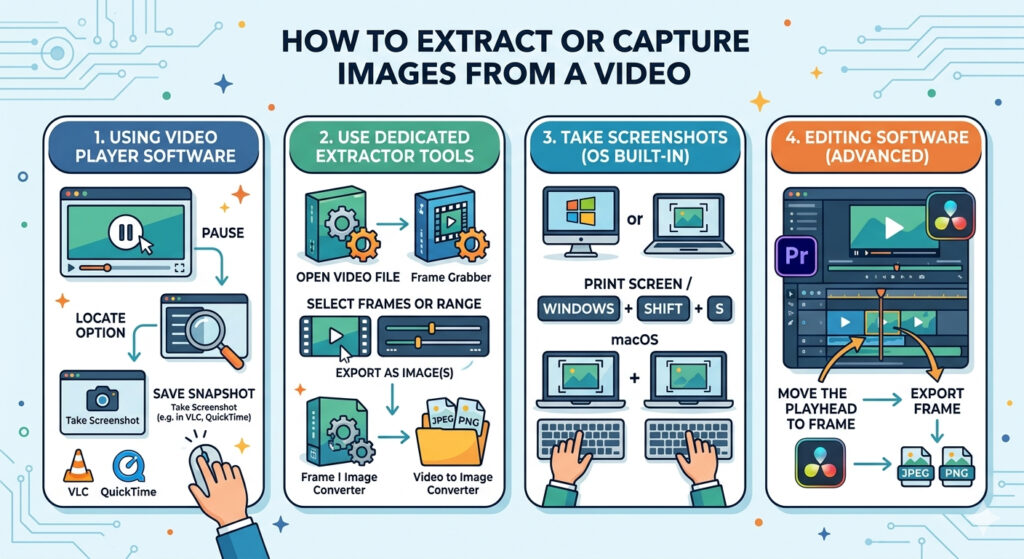
Table of Contents
Capture Images from a Video without overcomplicating things
When people search for Capture Images from a Video, they usually expect a clean result. Not a blurry screenshot, not something cropped awkwardly, but a proper still image taken directly from the video itself.
This is where most modern tools differ from old methods. Instead of relying on screen capture, they use frame extraction video techniques. That means you’re pulling the exact frame stored inside the video file. No quality loss from your screen resolution. If you’ve explored features of visora ai templates, you might notice that some templates already allow frame selection. You scrub through a clip, pause, and export that frame as an image. No extra steps.
Why people want to extract images from video in the first place
It sounds simple, but the reasons vary a lot. Some people need thumbnails. Others want reference images for design work. Sometimes it’s just about saving a moment from a tutorial or lecture.
A few common use cases:
- creating thumbnails for content
- saving product shots from promotional videos
- capturing frames for presentations
- pulling stills for social media posts
- studying movement in sports or animation
This is where video to image converter tools come in. They make the process repeatable, especially if you need multiple frames instead of just one.
Different ways to capture frames from video
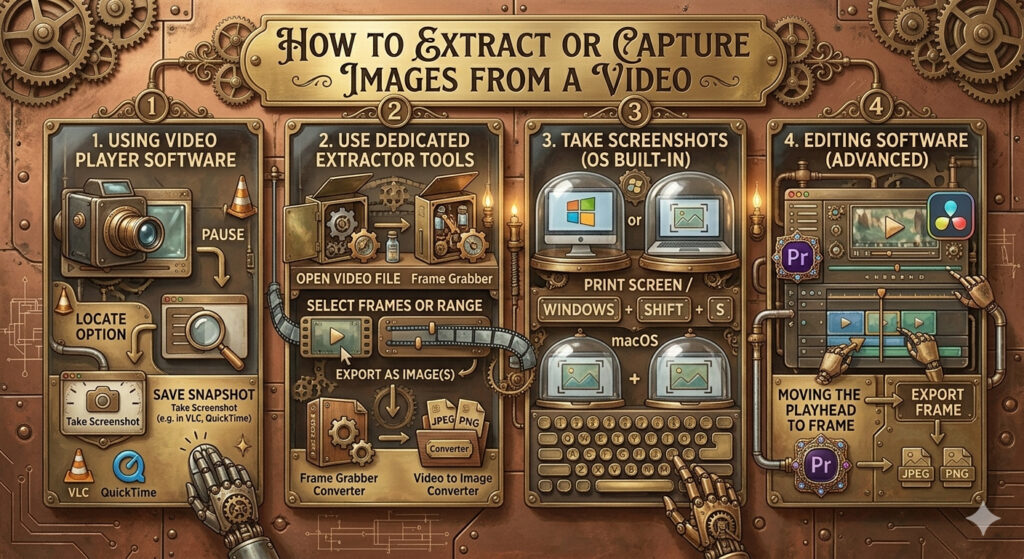
There isn’t just one method. Some people still use manual screenshots. Others prefer built-in tools inside video editing software. Then there are online image extraction tools that do everything in the browser.
| Method | Quality | Ease | Notes |
|---|---|---|---|
| Screenshot | Medium | Easy | Depends on screen resolution |
| Video editing software | High | Medium | More control |
| Online video to image converter | High | Easy | No install needed |
| Video frame grabber tools | High | Medium | Good for batch extraction |
Each approach has its place. The difference mostly comes down to how much control you want.

The slow shift from screenshots to frame extraction
People still ask how to take a still image from a video using screenshots. It works, but it’s not ideal. Screenshots depend on your display, scaling, and sometimes even brightness settings.
Frame extraction video methods skip all that. They pull the raw frame data. So when you capture still image video using proper tools, the result looks sharper and closer to the original.
That shift is subtle, but once you notice it, it’s hard to go back.
Using an image to video generator in reverse thinking
There’s a small mental flip here. Tools like an image to video generator are usually about turning images into motion. But when you reverse that idea, you realize videos are just sequences of images.
So extracting one frame is basically pulling one image from that sequence. It sounds obvious, but it helps explain why quality matters. Every frame is already there. You’re just selecting it.
How to extract or capture images from a video step by step
People often want a clear path, even if they don’t follow it exactly. Start by opening your video in a tool that supports frame extraction video. This could be a browser-based video screenshot tool or installed video processing tools. Move through the timeline slowly. When you find the frame you want, pause exactly there. This part matters more than anything else.
Then use the export or capture option. Some tools call it “save frame,” others call it “snapshot.” The wording changes, but the idea stays the same. Save the image in a format like PNG or JPG depending on your need. That’s it, at least in theory. In practice, people usually go back and adjust timing once or twice.
How to Edit Text in Image after capturing frames
Sometimes the captured frame isn’t the final step. You might want to tweak it. Maybe there’s text in the image that needs editing or replacing.
That’s where How to Edit Text in Image becomes relevant. Once the frame is saved, it behaves like any other image. You can open it in an image editor, adjust overlays, or even remove unwanted text elements.
This overlap between video and image editing is more common than people expect.
Best tools to capture frames from video online free
There are quite a few options, and they all feel slightly different.
Some online image extraction tools focus on simplicity. Upload, select frame, download. Others add extra features like batch frame extraction or timeline previews.
Desktop video editing software still has its place. It gives more control, especially when working with longer videos or needing precise timing.
| Tool Type | Best For | Limitation |
|---|---|---|
| Online video screenshot tool | Quick tasks | File size limits |
| Video editing software | Precision work | Learning curve |
| Video frame grabber apps | Bulk extraction | Setup required |
There isn’t a single best choice. It depends on how often you need to extract images from video.
Quality concerns when extracting images
One thing that comes up often is quality loss. People wonder how to convert video frames into images without losing quality. The short answer is: avoid screenshots if quality matters. Use tools that access the original video frames. Also, check the resolution of your source video. If the video is low quality, no tool will magically improve the extracted image. This part is easy to overlook. The output can only be as good as the input.
Mobile vs desktop experience
On mobile, things feel more limited. Some apps allow capture still image video, but the controls are smaller and less precise.
Desktop tools, especially video editing software, give better control over frame selection. You can move frame by frame instead of guessing.
Still, mobile tools are improving. For quick tasks, they’re often enough.
Using VLC and similar tools
A lot of people search for capture images from video using vlc media player tutorial. VLC has a built-in snapshot feature.
You play the video, pause at the right moment, and click snapshot. It saves the frame instantly.
It’s not the most advanced method, but it’s reliable and already installed on many systems.
Common Mistakes people make
A few patterns show up repeatedly.
People capture frames too early or too late because they don’t pause accurately. Others rely on low-resolution videos and expect high-quality images.
Some forget to check output settings and end up saving compressed images.
These small things add up. Fixing them usually improves results more than switching tools.
When to use batch frame extraction
If you need multiple images, doing it one by one feels slow. That’s where video frame grabber tools come in.
They allow you to extract images at intervals. For example, one frame every second or every few frames.
This is useful for:
- analyzing motion
- creating storyboards
- generating image datasets
It’s less about a single perfect frame and more about coverage.
Balancing speed and precision
There’s always a trade-off. Quick methods like video screenshot tool options are faster but less precise. More controlled methods using video editing software take longer but give cleaner results. Most people settle somewhere in the middle. Quick extraction for casual use, precise tools for important work.
Final thoughts that don’t try to wrap everything neatly
Extracting images from video sounds like a technical task, but it rarely feels that way once you try it a few times. It becomes routine. Pause, select, save. The tools keep improving, but the core idea hasn’t really changed. A video is just a sequence of images, and you’re picking one out of many. Some days you just need a quick frame. Other times you want something cleaner, maybe even something you’ll edit later. Both approaches work, depending on what you need in that moment. After a while, you stop thinking about the process entirely. You just know where to click.